
Image to Base64
Upload a JPG, PNG, or WebP image to instantly convert it into a Base64 string.
Checking free uses… · Up to 200 MB per file · Pro $8.99/mo · 4 GB · unlimited
How to use Img to Base64
All slides →4 step slides · red markers show where to click
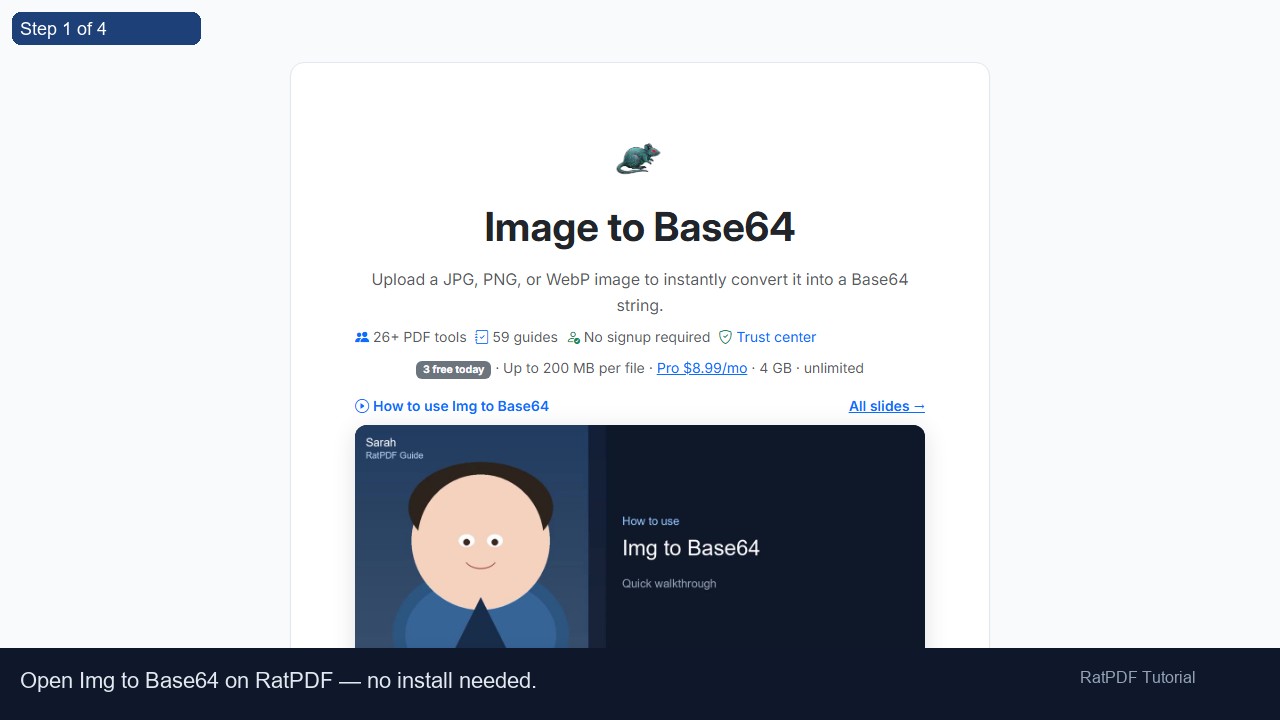 1
1
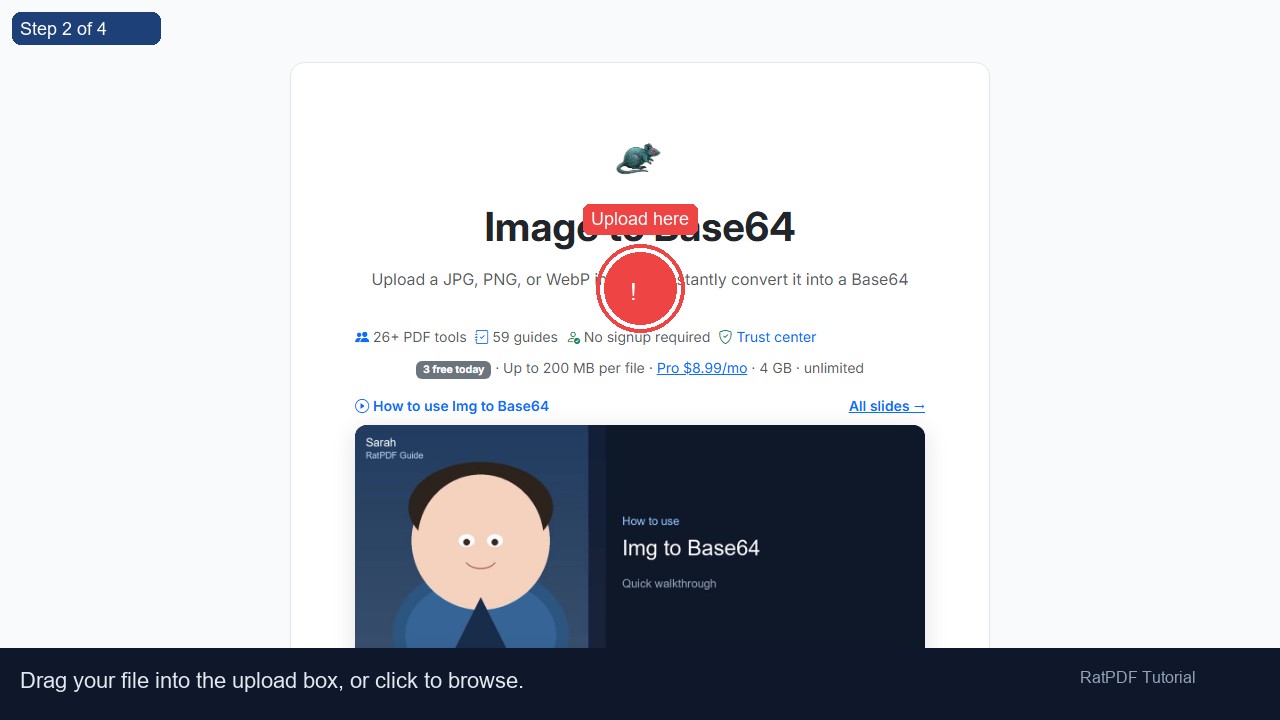 2
Upload here
2
Upload here
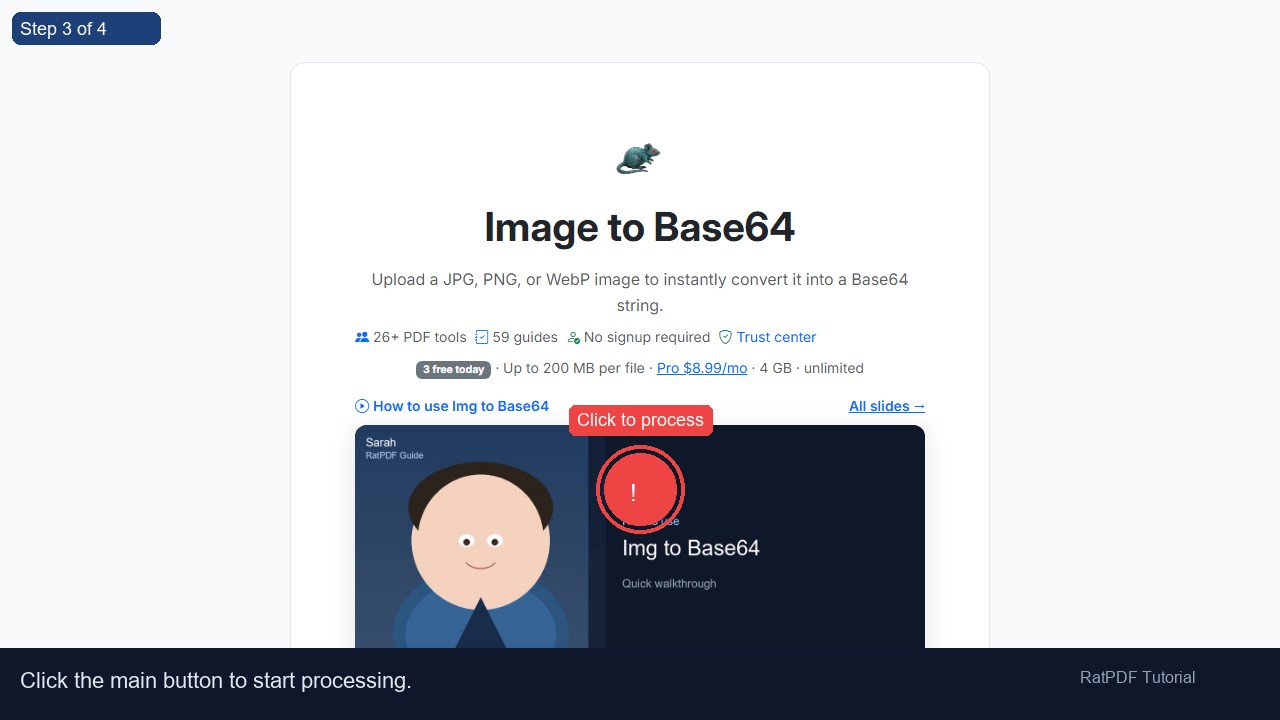 3
Click to process
3
Click to process
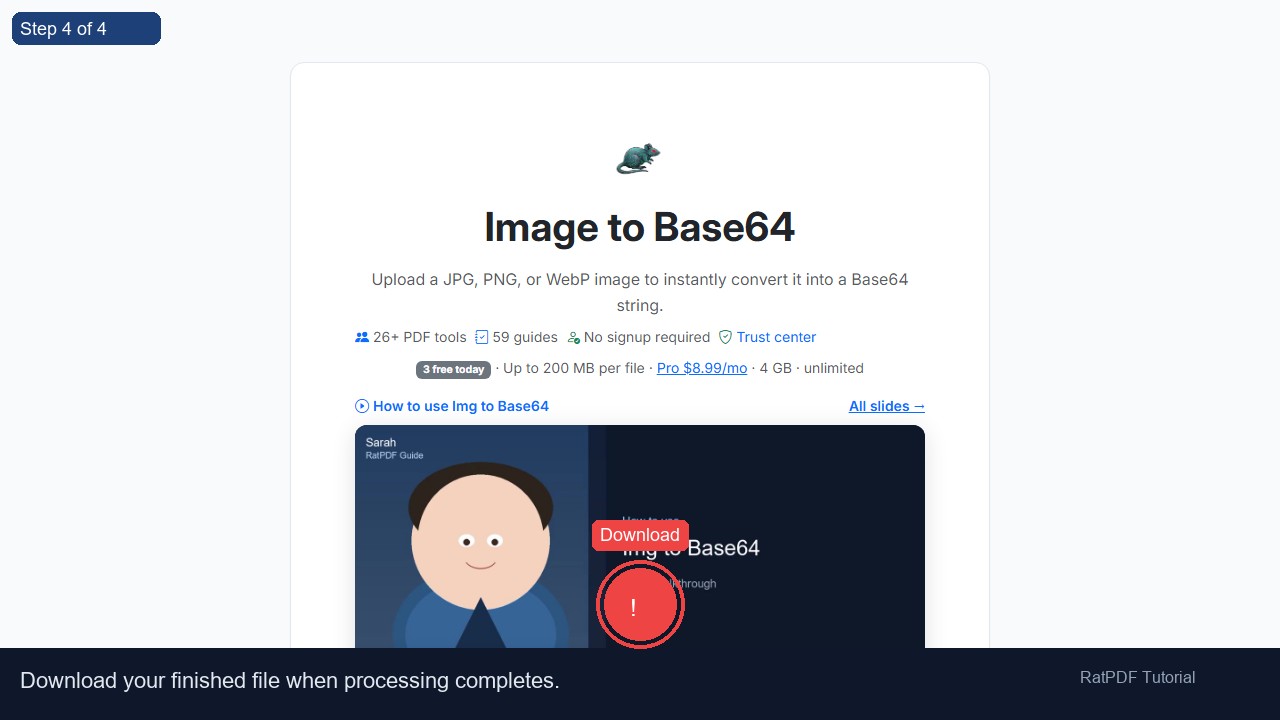 4
Download
4
Download
How to Convert Image to Base64?
- Upload your image file (JPG, PNG, or WebP).
- Click “Convert to Base64”.
- Copy the generated Base64 string.
Step-by-Step Guide: Convert Image to Base64 Online
Converting images to Base64 has become a common task in web development, email design, and API integrations. By encoding an image into Base64, you can embed it directly into HTML, CSS, or JSON without relying on external files. Follow these steps to convert your image quickly and efficiently:
- Upload your image: Click the upload box or drag and drop JPG, PNG, or WebP image. Ensure your file is under the recommended size for smooth conversion.
- Click Convert: Our tool instantly encodes your image into a Base64 string. The process happens locally in your browser, ensuring privacy and speed.
- Preview your image: Check the uploaded image preview to verify it’s correct. Previewing helps ensure that the right image is being converted before you copy the Base64 string.
- Copy or download Base64: Copy the Base64 string to your clipboard or download it as a text file to integrate into your HTML, CSS, email templates, or JSON files.
Why Use Our Image to Base64 Converter?
Our online converter provides a fast, secure, and convenient way to encode images. Unlike traditional tools that require installation or uploading files to a server, our solution works entirely in your browser.
- ✔ Free and browser-based: Convert images instantly without any software or registration.
- ✔ Secure: Processing happens entirely locally in your browser; no files are uploaded to servers, keeping your data private.
- ✔ Supports multiple formats: JPG, PNG, and WebP images are all compatible with our converter.
- ✔ Fast and reliable: Handle images of any size efficiently without waiting for uploads.
- ✔ Cross-platform: Works seamlessly on Windows, Mac, Android, and iOS devices using modern browsers.
Use Cases for Image to Base64 Conversion
Converting images to Base64 has multiple practical applications in development, design, and data management:
- Web Development: Embed images directly into HTML or CSS files. This reduces HTTP requests and can improve page loading speed for small icons or logos.
- Email Templates: Base64 ensures images are displayed consistently in email clients that block external images by default.
- APIs and JSON: Include images in API responses without hosting the files externally. Base64 encoding makes it simple to transport images in JSON payloads.
- Offline Projects: Integrate images directly into offline web apps or local HTML pages without requiring additional file storage.
- Data Storage: Store images in databases as Base64 strings, avoiding file management complexity while maintaining data integrity.
Benefits of Converting Images to Base64
Base64 encoding offers multiple advantages, particularly when embedding images for development or storage purposes:
- Embedded Images: Simplifies HTML, CSS, or JSON projects by eliminating the need for external image files.
- Faster File Access: Small images can load instantly, improving performance for icons, logos, or small graphics.
- Secure Image Delivery: Transmit images as text, reducing reliance on external servers or content delivery networks.
- Cross-platform Compatibility: Base64 works across all modern browsers and operating systems.
- Privacy: Since images are encoded and handled locally, your sensitive images remain private.
Advanced Tips for Image to Base64 Conversion
While converting an image to Base64 is straightforward, applying best practices ensures efficiency and optimal results:
- Optimize your images before conversion using compression to reduce the size of the resulting Base64 string.
- Choose PNG for images with transparency and JPG for photographs; this produces smaller Base64 outputs without quality loss.
- Consider WebP format for superior compression efficiency, which results in shorter Base64 strings while maintaining quality.
- Use Base64 primarily for small images or icons. Large images can significantly increase page size and memory usage.
- Combine Base64 conversion with tools like RatPDF’s Image Compressor for high-quality, smaller images, further reducing Base64 string length.
- Always test your Base64 images in their intended environment to ensure they display correctly across browsers and devices.
Frequently Asked Questions (FAQ)
Q1: What is Base64 and why convert images to it?
Base64 is a way to encode binary image data as text. Converting images to Base64 allows them to be embedded directly into HTML, CSS, email templates, or JSON files without relying on separate files.
Q2: Which image formats can I convert?
Our converter supports JPG, PNG, and WebP formats, allowing you to work with common image types easily.
Q3: Is the conversion process secure?
Yes. All processing occurs locally in your browser. No images are uploaded to any server, keeping your data private and secure.
Q4: Can I copy or download the Base64 string?
Absolutely. You can copy the Base64 string directly to your clipboard or download it as a text file for integration into your projects.
Q5: Do I need any software or registration?
No registration or installation is required. The tool is free, browser-based, and ready to use instantly.
Q6: Can I use this tool on mobile devices?
Yes, our converter works on all modern mobile devices, including Android and iOS smartphones and tablets.
Q7: What is the best use for Base64 images?
Base64 is ideal for small images, icons, or logos that need to be embedded directly into web pages, emails, or JSON for faster loading, simplified file management, and offline use.
Q8: Will Base64 affect website load speed?
For small images like icons and logos, Base64 can improve performance by reducing HTTP requests. For larger images, it may increase page size, so use selectively.
Q9: Can I embed Base64 images in CSS?
Yes. Base64 strings can be used in CSS as background images, making your CSS self-contained without requiring separate image files.
Q10: How do I revert Base64 back to an image?
You can use our related tool “Base64 to Image” to decode Base64 strings back into JPG, PNG, or WebP image files.
Conclusion
Converting images to Base64 is a practical and efficient method for embedding images in web development, email templates, API responses, and offline projects. Our free online converter provides a fast, secure, and browser-based solution for JPG, PNG, and WebP images.
By using this tool, you can embed images directly into your projects, improve data portability, save bandwidth, and maintain privacy. Whether you are a developer, designer, or content creator, converting images to Base64 has never been easier.
Try it today to streamline your workflow, reduce dependency on external image files, and ensure consistent display across web pages, email clients, and mobile devices. No downloads, no registration, and full privacy make this converter ideal for personal and professional use.